1. Work backward from your next commitment
Write down when your break must end. If you are free from 14:00 until 14:30, you have 30 minutes in total. That is the available window, not automatically the timer setting.
A simple planning rule is: settling-in time + nap countdown + time afterward = the whole break. Include any walk to your rest spot separately. Choosing a shorter timer can be more comfortable than using every available minute and then hurrying back.
2. Pick the countdown that fits
In Nap & Recharge, choose a nap preset from the Naps screen. The example below shows options including 10, 15 and 20 minutes. Pick by the time available; the preset name does not guarantee an outcome.

For help choosing a length, see the nap-duration guide. Here we are calculating a schedule, not choosing a medically ideal duration.
3. Add the Sleep Buffer only once
The Sleep Buffer is a fixed delay before the nap countdown. A three-minute buffer plus a 15-minute timer means the alarm sounds after 18 minutes. It does not wait until the app detects sleep; the app does not detect sleep onset.
Starting at 14:00 in this example gives an alarm at 14:18 and 12 minutes before a 14:30 commitment. That spare time is a scheduling allowance, not a guarantee of full alertness. With a 20-minute timer and the same buffer, the alarm would be at 14:23. Choose the combination that leaves an unhurried return.
4. Choose and check your wake-up settings
Set a wake-up sound and, if you want it, vibration. The Routine screen illustration shows separate controls for Wake Up Sound, Vibration and Ambient Sound. Background audio and your wake-up alarm serve different purposes.
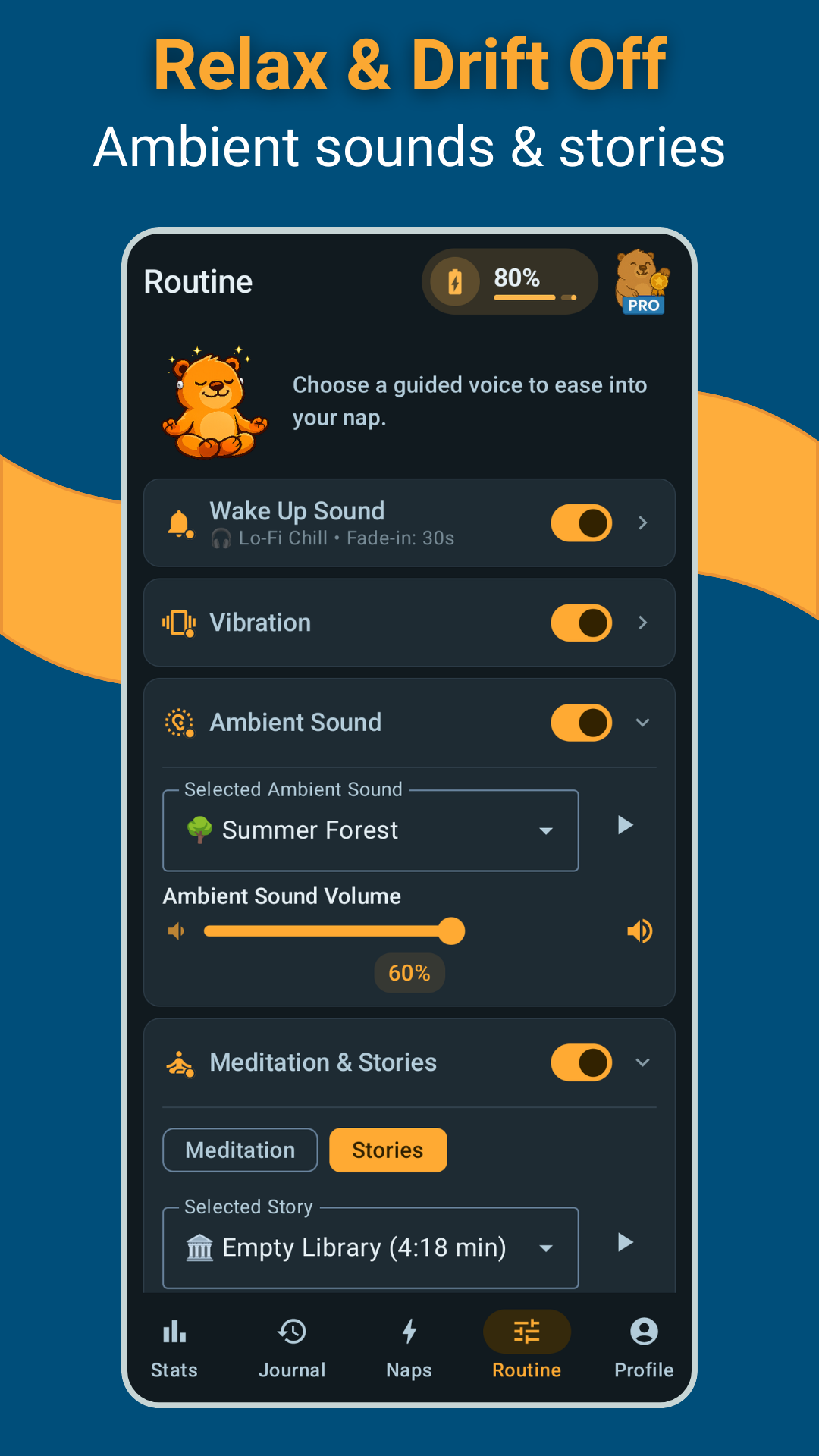
Before relying on a new setup, test the alarm on your own phone. Use the same speaker or headphones you intend to use for the break, and check any alarm permissions requested by Android.
5. A short checklist before you press start
- Does the buffer plus countdown fit inside the available break?
- Have you left time after the alarm?
- Is the resting position comfortable and the phone safely placed?
- Have you checked the sound and vibration you want to use?
Then let the timer run without repeatedly checking whether you have fallen asleep. If settling down is the difficult part, try the nap preparation guide. If waking up is difficult, read about sleep inertia.
Common timer questions
Does a 20-minute timer mean 20 minutes asleep?
No. The countdown also runs while you are awake.
Must I buy Pro to take a short nap?
No. Nap & Recharge has a free version. Pro is an optional one-time upgrade for additional features; the feature comparison explains the differences.
Can I use a normal alarm instead?
Yes. Calculate your intended wake-up time directly. The app adds convenient presets and settings, not a requirement for taking a break.